Small and medium-sized businesses (SMBs) face significant cybersecurity risks. Many lack the resources to implement extensive security measures. However, affordable cybersecurity solutions exist to protect valuable data without straining budgets. This article explores various options available for SMBs.
Understanding Cybersecurity Needs
SMBs often store sensitive information, such as customer data and financial records. Cyber threats can lead to data breaches, financial loss, and reputational damage. Recognizing the need for security is the first step towards protection.
Basic Cybersecurity Measures
Strong Password Policies
Strong passwords are the foundation of cybersecurity. Encourage employees to create complex passwords with a mix of letters, numbers, and symbols. Use a minimum length of 12 characters. Regularly update passwords to reduce risk.
Multi-Factor Authentication (MFA)
MFA adds an extra layer of security. It requires users to provide two or more verification methods. Typically, this involves a password and a mobile app authentication code. Implementing MFA significantly decreases the chance of unauthorized access.
Regular Software Updates
Software updates fix security vulnerabilities. Ensure that all operating systems and applications receive regular updates. Set reminders for updates if necessary. This practice helps keep your software secure against known threats.
Cost-Effective Security Solutions
Antivirus and Anti-Malware Software
Antivirus software protects businesses from malicious attacks. Many affordable options exist for SMBs, such as Malwarebytes and Bitdefender. These programs can detect and remove threats, scanning systems regularly.
Firewalls
Firewalls control incoming and outgoing network traffic. They create a barrier between your internal network and external threats. Many affordable firewall solutions include software firewalls and hardware firewalls, such as those offered by Ubiquiti and Cisco.
Cloud Security Solutions
Cloud security solutions, like Microsoft Azure and Google Cloud, provide scalable and cost-effective options for data protection. They offer built-in security features to protect sensitive data from unauthorized access. Furthermore, cloud services often include regular updates and compliance certifications.
Virtual Private Networks (VPNs)
Using a VPN can protect your company’s internet connection. It encrypts data sent over the network, keeping it private. Affordable VPN options include NordVPN and ExpressVPN. These services help secure remote workers’ connections, especially during public network usage.
Employee Training and Awareness
Training employees is a vital part of cybersecurity. Employees should understand potential threats, such as phishing scams. Regular training sessions enhance awareness and promote safe online practices. This proactive approach minimizes risky behaviors among staff.
Phishing Awareness
Phishing scams trick users into giving away confidential information. Train employees to identify suspicious emails or links. Encourage them to verify the sender before clicking any links or providing personal data.
Incident Response Training
Prepare employees for potential cybersecurity incidents. Develop an incident response plan detailing steps to take during a breach. Conduct drills to ensure everyone understands their role in the response process.
Affordable Managed Security Services
For SMBs lacking the resources for in-house security, consider managed security services. These services offer expertise and tools at a lower cost than maintaining a full-time IT security team. Companies like SecureWorks and CyberGuard offer affordable options tailored for SMBs.
Pros and Cons of Managed Security Services
Pros:
Access to expertise without high costs
Round-the-clock monitoring
Regular updates and compliance support
Cons:
May require long-term contracts
Less control over security decisions
Potential alignment issues with company policies
Compliance and Regulations
Understanding compliance requirements is essential for businesses. Regulations vary based on industry and location. Examples include GDPR for data protection in Europe and HIPAA for healthcare in the United States. Ensure your business meets necessary requirements to avoid fines.
Incident Response Planning
An incident response plan outlines steps to follow after a cybersecurity incident. This plan should include identifying the issue, containing the threat, eliminating the cause, and recovering data. Ensure all employees know the plan and their specific responsibilities.
Key Elements of an Incident Response Plan
Preparation: Train employees and establish protocols for different scenarios.
Containment: Control the incident to prevent further damage.
Eradication: Remove the threat from the system.
Recovery: Restore systems and operations to normal.
Lessons Learned: Analyze the incident to improve future responses.
Conclusion
Cybersecurity may seem complex for SMBs, but affordable solutions exist. By implementing basic measures, utilizing effective tools, and training employees, your business can enhance its security posture. Invest in solutions that fit your budget. Protecting your company from cyber threats is essential for long-term success.
Are you ready to take action to secure your business? Start with these recommendations and create a safer environment for your employees and customers.
Cybersecurity is essential for all organizations. An internal cybersecurity assessment helps identify weaknesses in security measures. This assessment evaluates current strategies and safeguards data effectively. This article outlines how to conduct an internal cybersecurity assessment.
What is an Internal Cybersecurity Assessment?
An internal cybersecurity assessment is an evaluation of an organization’s cybersecurity policies, procedures, and controls. It aims to identify vulnerabilities or gaps in cybersecurity. The assessment examines software, hardware, and employee practices. Organizations can use this information to strengthen their security and reduce risks.
Importance of Conducting an Assessment
Conducting an internal cybersecurity assessment is important for several reasons:
Identifying Vulnerabilities: The assessment reveals weaknesses in the system. Organizations can patch these gaps to prevent breaches.
Compliance: Many industries have regulatory requirements for data protection. An assessment helps ensure compliance with these laws.
Improving Security Posture: By understanding current security measures, organizations can improve overall protection against cyber threats.
Building Trust: A strong cybersecurity program builds trust with customers and partners. It shows a commitment to protecting sensitive information.
Steps to Conduct an Internal Cybersecurity Assessment
1. Define the Scope
Start by defining the scope of the assessment. Decide which systems, applications, and processes to include. Consider areas with sensitive data, such as customer information or financial records. Define the goals of the assessment. Set clear objectives like compliance, risk reduction, or performance improvement.
2. Gather Information
Collect information on existing cybersecurity policies, procedures, and controls. Review documentation related to:
Network architecture
Software applications
Data storage
User access controls
This information will form the basis of the assessment.
3. Assess Security Controls
Evaluate existing security controls. Identify the types of controls in place, such as:
Firewalls
Antivirus software
Intrusion detection systems
Encryption methods
Examine the effectiveness of these controls in protecting data and systems. Determine if they are properly configured and updated.
4. Conduct Risk Assessment
A risk assessment helps understand potential threats. Identify threats relevant to the organization, such as:
Malware attacks
Data breaches
Insider threats
Evaluate the likelihood of each threat occurring. Assess the potential impact on the organization. Use this information to prioritize risks.
5. Test Policies and Procedures
Testing the effectiveness of policies and procedures is crucial. Conduct penetration testing to simulate attacks. This will reveal how well the current controls stand up against real threats. Also, assess incident response plans. Test how quickly and effectively the organization can respond to a cyber incident.
6. Engage Employees
Employees play a vital role in cybersecurity. Assess their awareness of security policies. Conduct surveys or interviews to gauge their understanding of cybersecurity practices. Offer training and workshops to improve knowledge. A well-informed staff is a key defense against cyber threats.
7. Analyze Findings
Once the assessment is complete, analyze the findings. Identify patterns and common issues. Prepare a report detailing strengths and weaknesses. Highlight any critical vulnerabilities that need immediate attention.
8. Create an Action Plan
Develop an action plan based on the findings. Prioritize tasks based on risk levels. Include steps to remediate vulnerabilities, enhance training, and update policies. Assign responsibilities and deadlines for each task.
9. Monitor and Review
Cybersecurity is an ongoing process. Regularly monitor the effectiveness of new measures. Schedule routine assessments to keep up with new threats. Update policies and procedures as needed. Continuous review ensures that the organization remains secure.
Tools for Cybersecurity Assessment
Several tools can assist in conducting an internal cybersecurity assessment. Here are a few popular options:
Nessus: A vulnerability scanner that identifies security weaknesses in systems and applications.
Qualys: Offers a suite of tools for vulnerability management and compliance monitoring.
Wireshark: A network protocol analyzer that enables the examination of traffic in real-time.
Metasploit: A penetration testing framework that helps identify and exploit vulnerabilities.
Burp Suite: A web vulnerability scanner that tests web applications for security flaws.
Using these tools streamlines the assessment process and enhances the accuracy of findings.
Pros and Cons of an Internal Cybersecurity Assessment
Pros
Enhanced Security: Regular assessments lead to improved security measures.
Proactive Approach: Identifying vulnerabilities before they are exploited reduces damage.
Compliance Assurance: Helps organizations meet legal and regulatory requirements.
Informed Decision-Making: Assessment data guides future investments in security.
Cons
Resource Intensive: Assessments require time and personnel.
Potential Disruption: Testing may disrupt business operations.
False Sense of Security: A single assessment may not capture all vulnerabilities.
Real-World Examples
Many organizations have successfully used internal cybersecurity assessments. For instance:
Company A conducted an assessment and discovered outdated software. They updated their systems, reducing vulnerabilities by 30%.
Company B faced a data breach due to poor employee training. After an internal assessment, they implemented training programs, reducing incidents of phishing emails.
These examples show the value of regular assessments in improving security measures.
Conclusion
Conducting an internal cybersecurity assessment is vital for all organizations. It identifies vulnerabilities, ensures compliance, and improves the overall security posture. By following the steps outlined in this article, organizations can effectively assess and strengthen their cybersecurity measures.
Regular assessments create a safer environment for sensitive data and build trust with stakeholders. Managers should treat cybersecurity as a continuous process, adapting to emerging threats. Organizations that commit to ongoing assessments will better defend against cyber threats and remain resilient in a digital world.
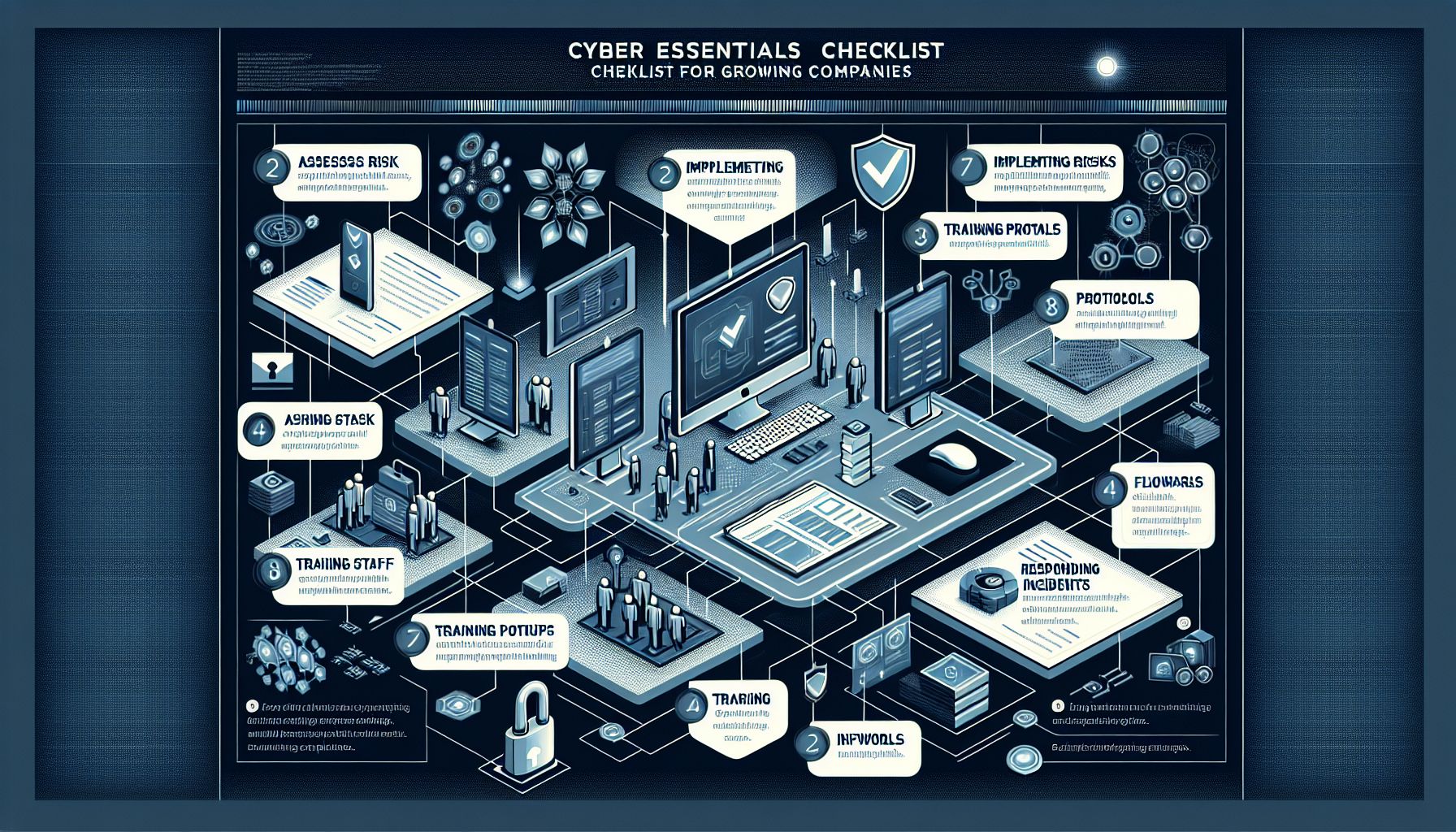
As companies expand, they become more attractive targets for cyber threats. Implementing a strong cybersecurity strategy is essential. The Cyber Essentials framework offers guidance to help businesses protect against common online attacks. This article outlines the Cyber Essentials checklist for growing companies.
Understanding Cyber Essentials
Cyber Essentials is a UK government-backed scheme. It provides a clear set of cyber security controls that organizations should implement. The goal is to secure systems and data from cyber threats. Achieving Cyber Essentials certification demonstrates to customers and partners that a business takes cybersecurity seriously.
The Importance of Cyber Security
For growing companies, cyber security is crucial. Data breaches can harm a company’s reputation. They can lead to financial loss and cause customers to lose trust. Increasing cyber threats make it necessary for businesses to prioritize security. Understanding the risks and implementing security measures can protect a company’s assets.
Key Areas of the Cyber Essentials Checklist
The Cyber Essentials checklist consists of five key areas. Each area includes security measures that organizations should follow.
1. Secure Your Internet Connection
A secure internet connection is the foundation of cybersecurity. These measures help safeguard your network:
Use a firewall to protect your network.
Ensure that all devices are connected through secure Wi-Fi.
Restrict access to your network with suitable passwords.
Implementing these practices creates a safer online environment. Regularly review your firewall settings and update your passwords to keep them strong.
2. Protect Your Devices and Software
It is essential to keep all devices updated and secure. Follow these steps to protect your systems:
Install antivirus software on all devices.
Keep operating systems and software updated to patch vulnerabilities.
Set devices to update automatically whenever possible.
Ensuring that your devices and software are consistently updated minimizes exposure to attacks.
3. Control Access to Your Data
Controlling access to sensitive data is vital. Take the following actions to enhance access control:
Limit access to data based on roles within the company.
Use strong passwords and enable multi-factor authentication.
Regularly review and update permissions for users.
By controlling who can access sensitive information, you reduce the risk of data breaches.
4. Secure Your Data
Data security protects against loss or theft. These steps can help secure your data:
Regularly back up data in multiple locations, including offsite storage.
Use encryption for sensitive information in storage and during transmission.
Monitor data access logs for any suspicious activity.
Data security measures increase the chances of data recovery in case of an incident.
5. Respond to Security Incidents
Having a response plan is essential for dealing with potential security incidents. Develop a plan that includes:
Identifying roles and responsibilities during an incident.
Establishing a communication strategy for internal and external stakeholders.
Conducting regular drills to ensure that your team is prepared.
A well-prepared response plan reduces the impact of a security incident on your organization.
Benefits of Achieving Cyber Essentials Certification
Achieving Cyber Essentials certification has several advantages:
Increased Trust: Certification shows customers and partners that you prioritize cybersecurity.
Reduced Risk: Implementing the checklist helps mitigate common cyber threats.
Competitive Advantage: Certification distinguishes your company in a crowded marketplace.
Certification can enhance your company’s credibility and boost customer confidence. As a result, you may attract more business opportunities.
Challenges of Implementing Cyber Essentials
While the benefits are clear, implementing Cyber Essentials can pose challenges:
Resource Allocation: Smaller companies may lack the resources needed for comprehensive security.
Staff Training: Staff may require training to understand security protocols and best practices.
Ongoing Maintenance: Security is not a one-time task; continuous monitoring and updates are necessary.
Addressing these challenges requires planning and commitment from leadership. Investing time and resources in these areas strengthens overall security.
Real-World Examples of Cyber Essentials Implementation
Several companies have benefited from Cyber Essentials certification:
Small Retailer: A small retailer implemented Cyber Essentials measures after experiencing a data breach. They secured their internet connection, installed antivirus programs, and provided staff training. Following these changes, the retailer reported a significant decrease in cyber incidents.
Tech Startup: A tech startup achieved Cyber Essentials certification before launching its product. This proactive step helped them gain trust from clients and facilitated partnerships with larger organizations that required a security certification.
Conclusion
Understanding and implementing the Cyber Essentials checklist is essential for growing companies. The five key areas—securing your internet connection, protecting devices, controlling data access, securing your data, and responding to incidents—form the backbone of a solid cybersecurity strategy. By achieving Cyber Essentials certification, companies can reduce risks, enhance trust, and gain a competitive edge in their industry.
As cyber threats continue to rise, prioritizing cybersecurity can lead to sustainable growth and success.
Virus protection for Macs has gained much attention. Many users believe that Macs are immune to viruses. This belief stems from fewer reported incidents of malware affecting Macs compared to Windows. However, this idea is misleading. Macs can and do get infected by malware. Understanding how effective virus protection is on Macs is essential for every user.
The Nature of Mac Threats
While Macs are less prone to viruses than Windows, they still face several threats. These include:
Malware: Malicious software can harm your computer. This can include viruses, adware, and spyware.
Ransomware: This type of malware locks your files until you pay a ransom.
Phishing Attacks: Fraudsters often use emails to trick users into revealing personal information or installing malware.
Adware: Some programs display unwanted ads and can slow down your system.
Awareness of these threats helps users take preventive measures.
Built-in Security Features
Apple has implemented numerous security features within macOS. Here are some notable ones:
XProtect: This built-in malware detection tool scans files when downloaded. It uses a database of known malware signatures to identify threats.
Gatekeeper: This feature prevents users from installing software from untrusted sources. It checks apps for digital signatures.
Sandboxing: Many Mac applications run in a confined space, limiting their access to system resources and personal data.
System Integrity Protection (SIP): This feature restricts access to system files and directories. It adds an extra layer of defense against malware that tries to modify system files.
These features provide a solid foundation for Mac protection against viruses and malware.
Third-Party Antivirus Solutions
While macOS offers effective built-in security, many users opt for third-party antivirus solutions. Here are some popular options:
Norton 360: Known for its comprehensive protection, Norton 360 offers malware protection, a firewall, and a VPN. Users report high satisfaction with its performance.
Bitdefender: Bitdefender provides strong virus protection. It includes a VPN, anti-phishing tools, and a user-friendly interface.
McAfee Total Protection: This option offers an array of features, including password management and identity theft protection. Many users appreciate its user-friendly approach.
Intego: Specifically designed for Macs, Intego provides excellent malware detection and includes additional features like backup solutions.
These solutions enhance the security provided by macOS. They come with advanced features and dedicated support.
Effectiveness of Mac Virus Protection
The effectiveness of Mac virus protection depends on various factors. Some users believe they do not need antivirus software, while others find it essential. Here are some points to consider:
Pros of Using Antivirus on Mac
Comprehensive Protection: Third-party antivirus software can detect new and evolving malware. They enhance the basic protection offered by macOS.
Real-time Scanning: Many antivirus programs scan files as they are opened and downloaded. This proactive measure helps prevent infections before they occur.
Frequent Updates: Antivirus programs regularly update their virus definitions. This keeps users protected against the latest threats.
Customer Support: Most antivirus providers offer customer support. Users can get help if they encounter issues or need assistance.
Cons of Using Antivirus on Mac
Performance Impact: Some antivirus solutions can slow down system performance. Users may need to balance security and usability.
False Sense of Security: Relying solely on antivirus software can lead to complacency. Users must still be vigilant about suspicious emails or downloads.
Cost: Many effective antivirus solutions require a subscription. This adds a recurring cost for users.
Overall, using antivirus software can significantly enhance Mac protection. However, users should also practice safe browsing habits and stay informed about potential threats.
Best Practices for Mac Users
To maximize virus protection, users should adhere to best practices:
Keep Software Updated: Always install the latest macOS updates and software patches. These updates often include security fixes.
Use Strong Passwords: Create unique and strong passwords for all accounts. Consider using a password manager to store them securely.
Be Cautious with Downloads: Only download software from trusted sources. Avoid suspicious websites and email attachments.
Enable Two-Factor Authentication (2FA): Use 2FA wherever possible. This adds an extra layer of security for accounts.
Educate Yourself: Stay informed about the latest cybersecurity threats and scams. Awareness is a key defense.
Conclusion
Mac virus protection is effective, but it is not infallible. While macOS includes strong built-in security features, users should complement these with third-party antivirus solutions and safe online practices. By understanding the nature of threats and employing robust security measures, Mac users can protect their devices and data effectively.
Maintaining vigilance is essential in today’s digital landscape. Awareness and action are your best defenses against malware. Users should take proactive steps to ensure their Macs remain safe from threats.
Being informed, cautious, and proactive can lead to a secure computing experience.
In today’s digital world, small businesses face many challenges. One major challenge is cyber security. Protecting company data, customer information, and overall digital presence is critical. A single cyber attack can ruin a small business. This article outlines why cyber security is vital for small business success.
Understanding Cyber Security
Cyber security refers to measures taken to protect computers and networks from attacks. These attacks can steal data or harm systems. Small businesses, just like large organizations, must prioritize this protection. Data breaches can lead to financial loss, legal issues, and damage to reputation.
The Threat Landscape
Common Cyber Threats
Small businesses often encounter various cyber threats. Some of the most common include:
Phishing Attacks: Fraudsters send emails pretending to be legitimate. They trick employees into sharing sensitive information.
Ransomware: This malicious software locks files and demands payment to restore access. It can bring business operations to a halt.
Data Breaches: Hackers can access confidential data, leading to serious consequences.
Weak Passwords: Many employees use easy-to-guess passwords, making it simple for attackers to gain entry.
These threats highlight the need for small businesses to invest in strong cyber security measures.
Financial Impact of Cyber Attacks
Costs of a Breach
The financial impact of a data breach can be devastating for small businesses. According to studies, the average cost of a breach can reach thousands of dollars. This amount includes:
Legal Expenses: Companies may face lawsuits or regulatory fines.
Recovery Costs: Restoring systems and protecting against future attacks requires time and resources.
Loss of Business: Customers may lose trust and take their business elsewhere.
Small businesses often operate on tight budgets. A single breach can be enough to close a business permanently.
Building Customer Trust
Safeguarding Customer Data
Customers expect businesses to protect their personal information. When a data breach occurs, it can damage that trust. Building strong cyber security protocols reassures customers that their data is safe. This trust is essential for success.
Competitive Advantage
Strong cyber security practices can also serve as a selling point. Small businesses that prioritize data protection attract more customers. Clients feel confident when they see a commitment to security. This creates a competitive advantage in the marketplace.
Legal and Regulatory Requirements
Small businesses must comply with various laws related to data security. Non-compliance can result in severe penalties. Regulations like the General Data Protection Regulation (GDPR) and the California Consumer Privacy Act (CCPA) impose strict requirements on data handling. Failure to meet these standards can lead to heavy fines and legal challenges.
Proactive Measures for Cyber Security
Risk Assessment
To improve cyber security, small businesses should conduct a risk assessment. This process identifies vulnerabilities and outlines potential threats. Understanding these risks helps in developing effective safety measures.
Employee Training
One of the most significant security risks comes from employees. Many attacks target staff to gain access to systems. Providing regular training on identifying threats, such as phishing emails, increases awareness. Empowered employees act as a frontline defense against cyber attacks.
Strong Password Policies
Implementing strong password policies is critical. Employees should use complex passwords and change them regularly. Multi-factor authentication adds another layer of security. This method requires more than just a password to access accounts.
Regular Software Updates
Software and systems must stay up to date. Many attacks exploit outdated software with known vulnerabilities. Regular updates and patches protect systems from known threats.
Backup Data
Backing up data is essential. Regular backups ensure that, in the event of a cyber attack, vital information can be restored. Cloud backup services offer a secure way to store data off-site.
Incident Response Plan
Preparing for the Unexpected
Even with strong precautions, incidents may occur. Having an incident response plan ensures a quick and effective reaction to cyber threats. This plan should outline steps to take after a breach, including:
Identifying the breach source
Notifying affected parties
Reporting to law enforcement
Assessing damage
A well-prepared business can minimize damage and recover more quickly.
Benefits of Cyber Security Investment
Peace of Mind
Investing in cyber security offers peace of mind. Business owners can focus on growth without the constant worry of an attack. Knowing that customer information and company data are protected allows for greater confidence in daily operations.
Long-Term Savings
While investing in cyber security requires upfront costs, the long-term savings are significant. The cost of a data breach can far exceed the cost of prevention. By investing in security measures, small businesses avoid costly recovery efforts and potential loss of revenue.
Reputation Management
A strong commitment to cyber security enhances a business’s reputation. Good reputation leads to higher customer loyalty. Customers are more likely to return to a business they trust with their information.
Conclusion
Cyber security is not just a technical issue. It is a vital aspect of small business success. Investing in security measures protects sensitive data, builds customer trust, manages compliance, and saves money. Small businesses must take cyber security seriously. Ignoring it can lead to dire consequences. It’s smarter to invest in prevention than to deal with the aftermath of an attack.
Cyber security is a key part of a strong business strategy. By prioritizing it, small businesses can thrive in a digital world.
macOS has robust built-in security features like FileVault, XProtect, and Gatekeeper that need proper configuration to maximize protection
Enabling two-factor authentication for your Apple ID and setting up automatic software updates are critical first steps in securing your Mac
Contrary to popular belief, Macs are not immune to malware and require active protection measures
Using a standard non-administrator account for daily tasks significantly reduces the risk of system-wide malware infections
SecureMac’s comprehensive security tools offer enhanced protection beyond Apple’s built-in features for users requiring advanced threat prevention
The myth of Mac invulnerability has persisted for years, but the reality is that as Apple’s market share grows, so does macOS’s appeal as a target for cybercriminals. Implementing proper security measures isn’t optional anymore—it’s essential for protecting your sensitive data, financial information, and digital privacy.
While macOS includes impressive security features, they only work effectively when properly configured and maintained. This comprehensive guide will walk you through practical, actionable steps to strengthen your Mac’s security posture against modern threats.
Mac Security Myths That Put Your Data at Risk
“Macs don’t get viruses” might be the most dangerous misconception in the Apple ecosystem. This outdated belief stems from a time when macOS (formerly OS X) was a less common target due to its smaller market share. Today’s reality is quite different—Mac-specific malware, adware, and ransomware are increasingly common. In 2020 alone, Mac malware detections surpassed Windows threats on a per-endpoint basis for the first time in history.
Another harmful myth is that Apple’s built-in security is sufficient without any user intervention. While macOS does include excellent security features, they require proper configuration and regular maintenance. Simply using default settings leaves significant vulnerabilities that sophisticated attackers can exploit.
The “security through obscurity” argument—that macOS is safer because it’s targeted less frequently—has become dangerously outdated. As Apple products have gained popularity, especially in business environments, they’ve become more attractive targets. Criminals follow the money, and Macs are now frequently used by executives, creative professionals, and other high-value targets.
Built-in macOS Security Features You Should Activate Today
Apple has invested heavily in security architecture that protects macOS users from various threats. However, many users aren’t leveraging these powerful tools to their full potential. Understanding and properly configuring these security features can dramatically improve your protection against modern cyber threats.
FileVault: Full-Disk Encryption for Your Peace of Mind
FileVault provides comprehensive encryption for your entire drive, ensuring that your data remains protected even if your Mac is lost or stolen. When properly configured, it renders your data unreadable without your password or recovery key. Enabling FileVault is straightforward: navigate to System Preferences > Security & Privacy > FileVault and click “Turn On FileVault.” Be sure to store your recovery key in a secure location separate from your Mac—without it, you risk permanent data loss if you forget your password.
System Integrity Protection: The Guardian of Core Files
System Integrity Protection (SIP) prevents even administrative users from modifying critical system files, significantly limiting what malware can do to your system. This feature helps maintain the integrity of your macOS installation by protecting core directories and files from unauthorized changes. SIP is enabled by default on modern macOS installations, but if you’ve previously disabled it for compatibility reasons, you should re-enable it when possible. You can verify SIP status by opening Terminal and running the command csrutil status.
This protection layer creates a crucial barrier between potential threats and your system’s most sensitive components. Even if malware manages to infiltrate your Mac, SIP restricts its ability to make permanent, system-level changes that could compromise your security.
XProtect: Apple’s Silent Malware Fighter
XProtect works quietly in the background as macOS’s built-in malware detection system. It scans files you download and open, comparing them against a database of known malware signatures that Apple updates regularly. When it detects a threat, XProtect prevents the file from running and notifies you of the potential danger.
Unlike traditional antivirus software, XProtect doesn’t require user management and updates automatically with system updates. However, its effectiveness depends on Apple’s ability to identify and respond to new threats quickly. For this reason, keeping your Mac updated is crucial for maintaining XProtect’s effectiveness against emerging malware.
Gatekeeper: Your First Line of Defense Against Malicious Apps
Gatekeeper verifies that applications come from trusted developers before allowing them to run on your Mac. By default, it allows apps from the App Store and identified developers who have signed their applications with a developer ID issued by Apple. This verification process helps prevent the installation of apps that might contain malware or have been tampered with.
To configure Gatekeeper, go to System Preferences > Security & Privacy > General. Under “Allow apps downloaded from,” you’ll see options to restrict which applications can run on your system. For maximum security, select “App Store” only, though this may limit functionality for legitimate software not available through Apple’s marketplace. A balanced approach is selecting “App Store and identified developers” while remaining cautious about overriding security warnings.
7 Essential Security Settings to Configure Right Now
Beyond Apple’s major security features, there are several critical settings you should configure to strengthen your Mac’s defense against potential threats. These adjustments require minimal technical knowledge but provide significant security benefits when implemented correctly.
1. Create a Strong Apple ID with Two-Factor Authentication
Your Apple ID serves as the gateway to numerous Apple services and devices, making it a prime target for attackers. Securing this account should be your top priority. Start by creating a strong, unique password that’s at least 12 characters long, incorporating a mix of numbers, symbols, and both upper and lowercase letters. Then enable two-factor authentication by going to System Preferences > Apple ID > Password & Security and clicking “Turn On” next to Two-Factor Authentication.
With two-factor authentication activated, accessing your account requires both your password and a verification code that appears on your trusted devices. This additional security layer makes unauthorized access significantly more difficult, even if your password is compromised. Remember to keep your recovery key in a secure location and ensure your trusted phone numbers are current.
2. Set Up Automatic Software Updates
Software vulnerabilities are constantly discovered and patched, making regular updates essential for maintaining security. Many successful attacks exploit known vulnerabilities that users simply haven’t patched. macOS makes staying current easy with automatic updates.
2. Set Up Automatic Software Updates
Software vulnerabilities are constantly discovered and patched, making regular updates essential for maintaining security. Many successful attacks exploit known vulnerabilities that users simply haven’t patched. macOS makes staying current easy with automatic updates.
To configure automatic updates, go to System Preferences > Software Update and check “Automatically keep my Mac up to date.” Click “Advanced” to customize which updates install automatically—at minimum, enable security updates. For comprehensive protection, allow installation of macOS updates, app updates from the App Store, and system files. Setting updates to install overnight minimizes disruption to your workflow while ensuring your system remains protected.
3. Configure Firewall Protection
macOS includes a powerful application firewall that controls which programs and services can accept incoming connections. Surprisingly, this feature isn’t enabled by default. Activate it by going to System Preferences > Security & Privacy > Firewall and clicking “Turn On Firewall.” Then click “Firewall Options” to configure specific application permissions.
For enhanced security, select “Block all incoming connections” to prevent unauthorized access attempts. This setting still allows essential services like software updates while blocking potential attack vectors. If you use services like file sharing or remote access, you’ll need to explicitly allow those connections. Review your firewall settings periodically to ensure they still align with your needs while maintaining maximum security.
4. Review App Privacy Permissions
Modern apps frequently request access to your camera, microphone, location, and personal data. While convenient, these permissions can pose significant privacy risks if misused. macOS provides granular controls over which apps can access sensitive data and hardware features.
Navigate to System Preferences > Security & Privacy > Privacy to review and modify app permissions. Work through each category (Location Services, Contacts, Calendars, etc.) and revoke unnecessary access rights. Be particularly cautious with camera and microphone permissions, as these could potentially be used for surveillance. Remember that legitimate apps should only request permissions relevant to their core functionality—a calculator app doesn’t need access to your contacts.
5. Enable Find My Mac
If your Mac is lost or stolen, Find My Mac provides crucial capabilities for protecting your data and potentially recovering your device. This feature allows you to locate your Mac on a map, lock it remotely, or even erase all data if recovery seems unlikely.
To enable this feature, go to System Preferences > Apple ID > iCloud and check the box next to “Find My Mac.” Additionally, select “Allow this Mac to be located” and “Allow Find My network to locate this Mac” for comprehensive protection. For maximum security, also enable “Activation Lock” which prevents anyone from erasing and reactivating your Mac without your Apple ID credentials, making stolen devices significantly less valuable to thieves.
6. Set Up a Non-Administrator Account for Daily Use
Using an administrator account for everyday tasks creates unnecessary risk. If malware compromises your user session, it gains the same privileges you have—potentially allowing system-wide access. Creating a standard user account for daily work limits what malware can do even if it infiltrates your system.
Create a new standard account through System Preferences > Users & Groups > Add User. Use this account for browsing, email, and general work. Reserve your administrator account solely for system changes and software installation. This separation creates a significant security boundary that can prevent malware from gaining deep system access, effectively containing potential infections.
7. Secure Safari Browser Settings
As your primary window to the web, your browser requires special security attention. Safari includes several important security features that should be properly configured. Open Safari > Preferences > Privacy and check “Prevent cross-site tracking” and “Block all cookies” (or at minimum, “Block third-party cookies”). These settings limit websites’ ability to track your browsing habits across different sites.
Enable “Warn when visiting a fraudulent website” under the Security tab to activate Safari’s phishing protection. Consider disabling AutoFill for credit cards and passwords if you’re using a dedicated password manager. For additional privacy, install content blockers from the App Store that can prevent trackers and unwanted advertisements from loading. SecureMac’s privacy tools include specialized solutions that work with Safari to enhance your browsing security.
Password Security for Mac Users
Password management remains one of the most critical aspects of digital security. Despite advances in biometric authentication, passwords continue to be the primary defense for most online accounts. Effective password security requires both strong, unique passwords and proper management tools to keep track of them securely.
iCloud Keychain: Apple’s Password Manager
iCloud Keychain offers a convenient way to generate, store, and autofill passwords across all your Apple devices. This integrated solution synchronizes your credentials securely using end-to-end encryption, ensuring only you can access your passwords. To enable iCloud Keychain, go to System Preferences > Apple ID > iCloud and check “Keychain.”
When creating new accounts online, Safari will offer to generate strong, unique passwords and store them automatically in your Keychain. You can view and manage stored passwords through Safari > Preferences > Passwords. One significant advantage of iCloud Keychain is its deep integration with macOS and iOS, making the authentication experience seamless while maintaining strong security practices.
For organizations managing multiple devices, iCloud Keychain can be configured through Mobile Device Management (MDM) solutions to ensure consistent password policies across company-owned equipment. This centralized approach helps maintain security standards while providing employees with the convenience of secure password management.
iCloud Keychain vs. Third-Party Password Managers While iCloud Keychain is excellent for users fully committed to the Apple ecosystem, third-party solutions like 1Password and Bitwarden offer cross-platform compatibility for those who also use Windows or Android devices. These tools typically provide additional features like password sharing, security audits, and customizable password generation rules that may benefit power users or organizations with complex requirements.
Creating Unique, Strong Passwords
The foundation of password security is using unique, complex passwords for each service. Password reuse remains one of the most common security mistakes, allowing attackers who compromise one service to potentially access many of your accounts. Let your password manager generate passwords for you—these will be significantly stronger than human-created passwords and impossible to guess. Aim for at least 14 characters with a mix of character types for maximum security. For accounts that don’t support password managers, consider using the “memorable password” option that creates phrases easier to type manually while maintaining security.
Password Monitoring and Breach Alerts
Modern password managers don’t just store your credentials—they actively monitor for security breaches that might affect your accounts. Safari’s password monitoring alerts you when stored passwords appear in known data breaches, giving you the opportunity to change compromised credentials before they’re exploited. To check if your passwords have been compromised, go to Safari > Preferences > Passwords and look for yellow warning triangles indicating passwords that need attention. Addressing these warnings promptly is crucial for maintaining your online security posture and preventing unauthorized access to your accounts.
Protecting Your Mac from Malware and Ransomware
Despite Apple’s security measures, macOS malware continues to evolve in sophistication. Common threats include adware that displays unwanted advertisements, spyware that monitors your activity, and increasingly, ransomware that encrypts your files and demands payment for their recovery. Understanding these threats and implementing preventive measures is essential for comprehensive Mac security.
XProtect provides basic protection against known malware, but its reactive approach means it can only detect threats already identified by Apple. For emerging or sophisticated threats, additional layers of protection become necessary. This multi-layered approach should combine technical measures with informed user behavior to create comprehensive defense.
Ransomware deserves special attention as one of the most damaging threats to Mac users. Unlike traditional malware that might steal data or display ads, ransomware can render your files permanently inaccessible without proper backups. The financial and operational impact of ransomware attacks can be devastating, particularly for businesses and professionals who rely on continuous access to their data.
Recent Mac Malware Trends Recent years have seen increasingly sophisticated Mac malware families including: • XCSSET: Targets Xcode developers and exploits Safari vulnerabilities • Silver Sparrow: A mysterious threat with M1 chip compatibility • ThiefQuest: Combines ransomware and data exfiltration capabilities • Shlayer: Masquerades as Flash updates and remains prevalent despite Flash’s discontinuation
Preventing malware infections requires a combination of system-level protections and cautious user behavior. Keeping your system updated, using standard user accounts for daily work, and installing software only from trusted sources form the foundation of effective malware prevention. Additionally, tools like SecureMac’s MacScan 3 can provide specialized protection against emerging threats that might bypass Apple’s default security measures.
Signs Your Mac Might Be Infected
Recognizing potential malware infections early can prevent significant damage. Watch for unexpected system behavior like excessive fan noise when running few applications, unexplained network activity, sudden battery drain, or random system crashes. Browser hijacking—where your homepage changes without permission or you’re redirected to unexpected websites—is another common indicator. If applications crash frequently or your Mac runs significantly slower than normal, especially after installing new software, you might be dealing with malware. Unusual login attempts or unauthorized administrative changes should prompt immediate investigation, as these might indicate active compromise of your system.
Safe Browsing Habits to Prevent Infections
Many malware infections begin with deceptive downloads or phishing attempts. Develop the habit of verifying download sources before installing any software, particularly when the installation requires entering your administrator password. Be extremely cautious about software that claims to clean, optimize, or speed up your Mac, as these categories are frequently used as disguises for malware.
Email attachments remain a primary vector for malware distribution. Never open unexpected attachments, even if they appear to come from known contacts. When in doubt, verify through a separate communication channel before opening suspicious files. Similarly, be wary of unexpected prompts to update software—instead of clicking through alerts, manually check for updates through the App Store or the software developer’s official website to avoid fake update scams that install malware.
Should You Install Third-Party Antivirus Software?
While macOS includes basic malware protection, third-party security tools offer more comprehensive coverage against emerging threats. Consider additional protection if you frequently download files from various sources, work with sensitive information, or need to comply with specific security regulations. Look for solutions specifically designed for macOS rather than ports of Windows software. The best Mac security tools work harmoniously with Apple’s built-in protections while adding features like real-time scanning, web filtering, and advanced ransomware protection. For users with elevated security requirements, specialized tools from security-focused companies like SecureMac provide enhanced protection without the performance impact often associated with traditional antivirus software.
Securing Your Mac on Public Wi-Fi Networks
Public Wi-Fi networks present significant security risks that many Mac users underestimate. From coffee shops to airports, these networks often lack proper encryption and security controls, making them hunting grounds for attackers. Even networks with passwords can be compromised if those passwords are widely shared or posted publicly. Understanding these risks is the first step toward protecting your sensitive data when connecting away from home.
The Hidden Dangers of Public Hotspots
When connecting to public Wi-Fi, your data transmissions can potentially be intercepted by anyone on the same network. Attackers using techniques like “man-in-the-middle” attacks can position themselves between you and connection points to eavesdrop on Wi-Fi traffic and potentially capture sensitive information. Even more concerning are “evil twin” attacks where criminals create fake hotspots with names similar to legitimate networks, tricking users into connecting to malicious networks controlled by attackers. To safeguard your data, it’s essential to understand how to protect against malware when using public networks.
Another significant risk is session hijacking, where attackers steal browser cookies to gain unauthorized access to websites you’re logged into. This can happen without your knowledge and may persist even after you’ve disconnected from the compromised network. These risks make it essential to implement additional protection measures whenever you connect to networks outside your control.
How to Use a VPN on Your Mac
A Virtual Private Network (VPN) creates an encrypted tunnel for all your internet traffic, preventing others on the same network from intercepting your data. When selecting a VPN service for your Mac, look for those offering strong encryption protocols (OpenVPN or WireGuard), a strict no-logs policy, and Mac-native applications. Avoid free VPN services, as these often compensate for lack of revenue by collecting and selling your browsing data—defeating the purpose of privacy protection.
Setting up a VPN on macOS is straightforward with most commercial services. After subscribing, download the provider’s application from their official website or the App Store. Most VPN apps will guide you through the setup process, and once configured, you can connect with a single click before joining public Wi-Fi networks. For enterprise users, your organization may provide a specific VPN solution with preconfigured settings that align with company security policies.
Backup Strategies to Recover from Security Incidents
Even with robust preventive measures, security incidents can still occur. A comprehensive backup strategy ensures you can recover quickly from ransomware attacks, hardware failures, or accidental data loss. Effective backup plans follow the 3-2-1 rule: maintain at least three copies of important data, store them on at least two different types of media, with at least one copy stored off-site or in the cloud.
Time Machine: Your Built-in Backup Solution
Time Machine is macOS’s integrated backup solution that automatically creates incremental backups of your entire system. These backups include not just your files but also system settings, applications, and accounts—allowing complete system restoration if necessary. To set up Time Machine, connect an external drive to your Mac, and when prompted, select “Use as Backup Disk.” Time Machine will then handle the rest, creating hourly backups for the past 24 hours, daily backups for the past month, and weekly backups beyond that.
One of Time Machine’s most valuable features is its ability to restore individual files without recovering the entire system. If you accidentally delete an important document or want to revert to a previous version, simply enter Time Machine from the icon in your menu bar, navigate to when the file existed, and select “Restore.” For security purposes, consider encrypting your Time Machine backup drive to protect your data if the drive is lost or stolen.
Cloud Backup Options for Mac
Cloud backup services provide off-site storage that protects your data even if your Mac and local backups are damaged, stolen, or encrypted by ransomware. Services like Backblaze, iDrive, and Carbonite offer Mac-compatible solutions with automatic backup features and remote access to your files. Many cloud services also provide versioning, allowing you to recover previous file versions if current ones become corrupted or encrypted by malware.
Creating a Bootable Backup
While Time Machine and cloud backups are excellent for recovering data, a bootable backup (sometimes called a clone) creates an exact copy of your startup drive that you can immediately boot from if your main drive fails. This approach minimizes downtime during recovery, making it particularly valuable for professional environments where productivity is critical.
Carbon Copy Cloner and SuperDuper! are popular applications for creating bootable backups
Schedule regular updates to keep your bootable backup current
Store the bootable backup drive in a secure, different location from your Mac
Test your bootable backup periodically by actually booting from it
Consider creating multiple bootable backups with different update schedules
When configuring your backup strategy, consider your recovery time objectives—how quickly you need to be operational after an incident. For critical systems, maintaining current bootable backups alongside Time Machine and cloud solutions provides the fastest recovery options. Remember that backups are only effective if they’re current, so establish a regular schedule and verify that backups complete successfully.
If you’re concerned about ransomware specifically, ensure some of your backups are “air-gapped” or disconnected from your computer when not actively backing up. This prevents malware from encrypting or corrupting your backup files along with your primary data.
Physical Security Measures for Your Mac
Digital security measures are essential, but physical protection is equally important—particularly for portable Macs. A stolen MacBook with weak physical security controls could give attackers direct access to your data regardless of how strong your network protections are. Implementing robust physical security measures complements your digital protections and creates a more comprehensive security posture.
Screen Lock and Login Options
Configure your Mac to require authentication immediately when waking from sleep or after the screen saver activates. Go to System Preferences > Security & Privacy > General and check “Require password immediately after sleep or screen saver begins.” For added security, consider enabling the screen saver to activate after a short period of inactivity through System Preferences > Desktop & Screen Saver > Screen Saver > Start after. Set up hot corners to quickly activate your screen saver when stepping away from your Mac by clicking “Hot Corners” and assigning one corner to “Start Screen Saver” for rapid locking.
Theft Prevention Tools
Physical security devices like Kensington locks provide a visible deterrent and physical anchor for your Mac in public or shared spaces. These cable locks connect to the security slot found on many Mac models and can be anchored to immovable objects. For MacBooks without security slots, consider specialized locking enclosures or security cases that provide similar functionality. In office environments, maintain an asset inventory with serial numbers and consider using asset tags that make equipment less attractive to thieves by clearly identifying ownership.
Keep Your Mac Protected in 2023 and Beyond
Securing your Mac is not a one-time task but an ongoing process that requires vigilance and adaptation as new threats emerge. Stay informed about security developments by following trusted sources like Apple’s security updates page, reputable tech publications, and security researchers focused on macOS. Regularly review your security settings, update your software promptly, and consider periodic security audits to identify potential vulnerabilities before they can be exploited. Remember that your security is only as strong as your weakest protection—a comprehensive approach addressing both technical controls and user behavior provides the strongest defense against evolving threats. For enhanced protection beyond Apple’s built-in security features, SecureMac offers specialized tools designed to safeguard your privacy and defend against advanced threats targeting the macOS ecosystem.
Frequently Asked Questions
Below are answers to common questions Mac users have about security. These responses reflect current best practices and are applicable to recent macOS versions including Monterey, Big Sur, and Catalina. For more detailed information, you can refer to Apple’s guide on protecting against malware. Keep in mind that specific features and settings might vary slightly between versions.
Understanding these fundamentals will help you make informed decisions about your Mac’s security configuration. Remember that security requirements vary based on your specific circumstances—what’s appropriate for a home user may differ from what’s needed in a business environment or for someone working with particularly sensitive information.
These recommendations represent baseline security practices that most users should implement. For environments with specific compliance requirements or higher security needs, consider consulting with a security professional familiar with the macOS ecosystem to develop tailored protection strategies.
As Apple continues to evolve macOS security features, staying current with both system updates and security best practices becomes increasingly important. The guidance below represents current best practices but may evolve as Apple introduces new security capabilities in future macOS releases.
Security Feature Comparison by macOS Version
Feature
Monterey
Big Sur
Catalina
Sealed System Volume
Yes (Enhanced)
Yes
Partial
XProtect Mechanism
Advanced
Advanced
Basic
Privacy Control Granularity
High
High
Medium
App Verification
Notarization Required
Notarization Required
Notarization Required
Private Relay Support
Yes
No
No
Are Macs really more secure than Windows computers?
Macs offer certain security advantages over Windows computers, including a more rigorous app review process, system architecture that limits privilege escalation, and fewer legacy compatibility issues. However, the security gap has narrowed significantly in recent years as both platforms have improved their protection capabilities. The primary security advantage for macOS today comes from its Unix foundation with strong permission models and Apple’s control over both hardware and software, allowing for tighter integration of security features.
That said, no operating system is immune to threats. As Mac market share has grown, particularly among high-value targets like executives and creative professionals, attackers have increased their focus on macOS. Security ultimately depends more on configuration and user behavior than on operating system choice. A well-secured Windows device will be more protected than a poorly configured Mac with outdated software. Focus on implementing security best practices regardless of platform rather than relying on perceived security advantages.
What should I do if I think my Mac has been hacked?
If you suspect your Mac has been compromised, disconnect from the internet immediately to prevent data exfiltration and further system damage. Run a malware scan using reputable security software designed for macOS. For serious compromises, consider booting into Recovery Mode (hold Command+R during startup) to verify system integrity or reinstall macOS. After addressing the immediate threat, change passwords for sensitive accounts using a different, uncompromised device. Restore only data files (not applications or system settings) from backups created before the suspected compromise, and monitor your accounts for unusual activity that might indicate credential theft. For business environments or particularly sensitive personal situations, consider engaging professional security assistance to ensure comprehensive remediation.
Do I need to pay for antivirus software on my Mac?
While macOS includes basic protection through XProtect, Gatekeeper, and System Integrity Protection, these features primarily defend against known threats and may not detect sophisticated or emerging malware. Paid security solutions offer additional capabilities like real-time scanning, behavior-based detection, and web filtering that can identify threats before they reach Apple’s definitions. Consider investing in security software if you frequently download files from various sources, need to exchange files with Windows users, work with sensitive information, or want protection against the latest threats. Look for solutions specifically designed for macOS rather than ported Windows software to ensure optimal performance and compatibility with Apple’s security architecture.
How often should I update my macOS?
Security updates should be installed as soon as possible—ideally within days of release. These updates patch vulnerabilities that could be exploited by attackers and often address actively exploited security flaws. For major macOS version upgrades (e.g., Big Sur to Monterey), it’s reasonable to wait a few weeks to allow Apple to address any significant bugs, but don’t delay beyond that without specific compatibility concerns. Configure automatic updates through System Preferences > Software Update to ensure you don’t miss critical security patches. For managed environments, establish a testing process that balances security needs with stability requirements, but prioritize rapid deployment of security-specific updates even if general feature updates follow a more conservative schedule.
Can using a Mac in public places put my data at risk?
Visual exposure: Screens can be viewed by onlookers capturing sensitive information
Network threats: Unsecured Wi-Fi enables interception of unencrypted traffic
Physical security: Unattended devices risk theft or tampering
Bluetooth vulnerabilities: Enabled Bluetooth can be exploited in crowded areas
Charging station risks: Malicious charging stations can potentially access data
Public environments present multiple security challenges that require vigilance and preventative measures. Always use a privacy screen when working with sensitive information to prevent visual eavesdropping. Connect to public Wi-Fi only through a VPN, and consider using your mobile phone’s hotspot for more sensitive tasks. Never leave your Mac unattended, even for brief periods—a device can be compromised or stolen in seconds. Disable Bluetooth when not actively using it, as Bluetooth vulnerabilities have been used for attacks in crowded spaces. Be cautious with public USB charging stations which could potentially be used for data access; using power-only adapters or portable battery packs eliminates this risk.
Remember that physical security and network security are equally important. Even the strongest encryption and most current software offer little protection if an attacker gains physical access to your device or can eavesdrop on unencrypted network traffic. Developing security-conscious habits when using your Mac in public spaces significantly reduces your exposure to these common threats.
By implementing these comprehensive security measures, you’ll significantly strengthen your Mac’s defenses against both common and sophisticated threats. Remember that security is a continuous process requiring regular maintenance and updates as new vulnerabilities and attack methods emerge. Taking a proactive approach to security helps ensure your personal data remains protected while maintaining the performance and usability that make Mac systems so popular.
For users seeking enhanced protection beyond Apple’s built-in security features, SecureMac offers specialized tools designed to address advanced threats specifically targeting the macOS ecosystem. Their security solutions complement Apple’s native protections while providing additional layers of defense against emerging threats.